OnliKit tool
Try the PDF to Images now — free, no signup
How I Stopped Cropping Screenshots and Started Converting PDFs to Images
- Published On: May 2, 2026
- Category: pdf
How I Stopped Cropping Screenshots and Started Converting PDFs to Images
For the longest time, my "PDF to image" workflow was embarrassing. Open the PDF, zoom until the page looked right, screenshot, crop, repeat for every page I needed. If the doc was twenty pages, that was twenty screenshots and twenty mediocre crops with thin grey borders nobody asked for.
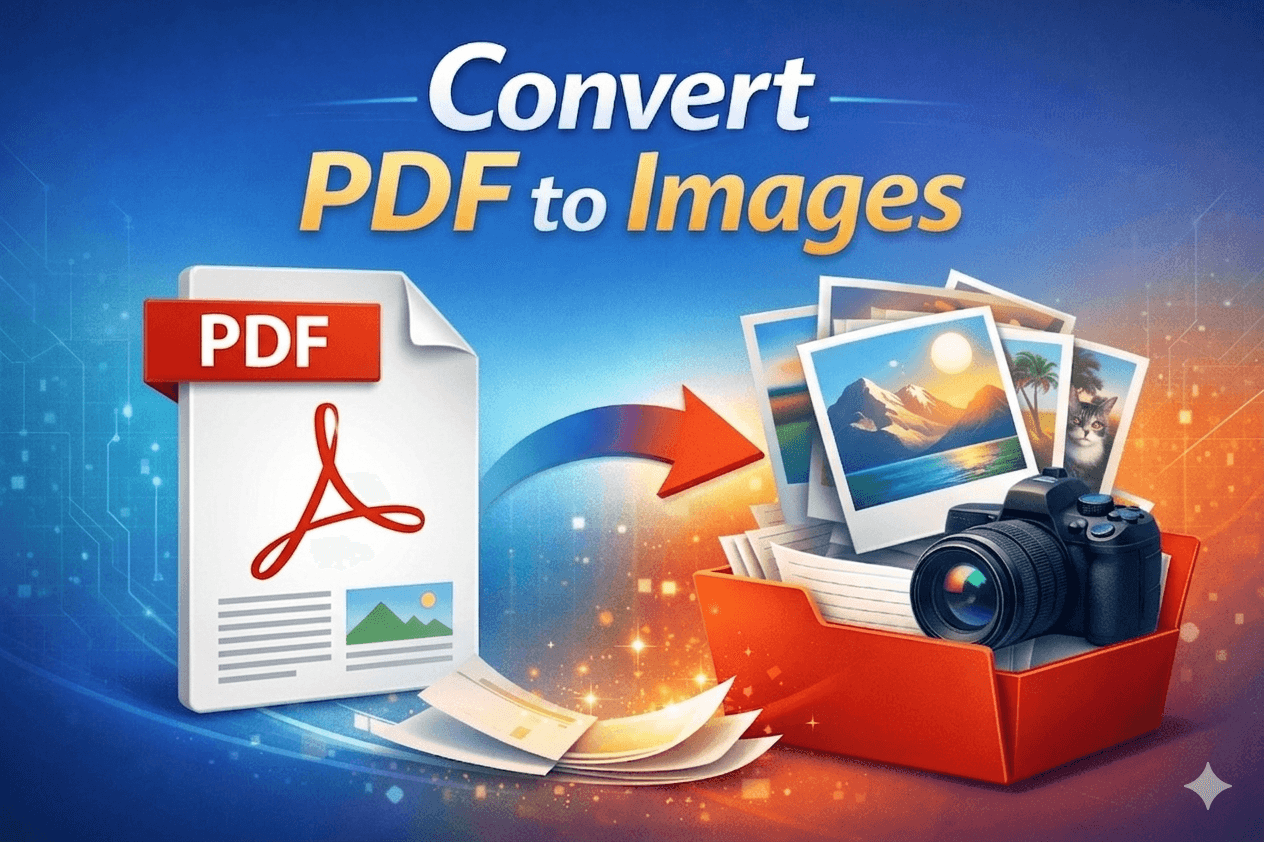
The whole reason I built this little tool on Onlikit was because I got tired of doing that for the third time in a week. Open PDF to Images from the button above when you are ready; the short version is: upload a PDF, choose format and resolution, optional page range, download a ZIP of one image per page.
If you need the opposite (several images merged into one PDF), use Image to PDF. Browse the full tools directory.
What this tool actually does
You give it a PDF. It gives you back a folder (well, a ZIP) of clean images, one per page. That's it. No watermarks, no "sign up to download", no five-minute wait while a queue clears.
Under the hood it renders each page at the resolution you pick, so the output is sharp instead of looking like someone photographed your laptop screen.
Everything you can do inside the tool
I tried to keep the controls small but useful. Here is the full list:
- Drag and drop a single PDF, or pick it from your device
- Choose the output format — PNG when you need crisp text and lines, JPEG when you want the smallest possible files
- Pick the resolution — Standard for screen sharing, High for slides, or Print for actual printing
- Convert only the pages you need with a simple From / To page range, so you don't have to rasterise a 200-page report just to grab pages 12 and 13
- Type a password if your PDF is locked, and the tool will use it to open the file
- One click to convert, with progress showing while the upload runs
- Get one ZIP back with files named
page-001.png,page-002.png, and so on, so they sort properly in any folder - Replace the file without leaving the page if you uploaded the wrong PDF
- Re-upload a failed file if your network blinked, without starting over
That's the entire feature set today. I'd rather ship a small thing that works than a big thing with ten broken switches.
When this has saved me time
A few real situations where I've used it in the last month:
- A friend sent me a thirty-page itinerary as a PDF and I needed two specific pages to send in WhatsApp. Page range, JPEG, done in seconds.
- A teacher I know wanted thumbnails of every slide in a lecture PDF for her course landing page. PNG, high resolution, and she dropped the ZIP straight into her CMS.
- A designer needed each page of a brand guideline PDF as separate frames in Figma. PNG export, dragged the whole ZIP into Figma, and the frames were on the canvas in under a minute.
- I had to share one specific page of a contract in Slack and the channel didn't render the PDF inline. Convert, download, drop the JPG in chat.
If you've ever forwarded a whole PDF just so the other person can look at one page, you already know why this matters.
Choosing the right settings (without overthinking it)
Most people don't need to think about this, but if you want the short version:
- If the PDF is mostly text, contracts, code, or anything line-heavy, use PNG. Text stays crisp and there are no compression smudges around letters.
- If the PDF is mostly photos or scanned pages, use JPEG. The file size drops a lot and the quality difference is hard to see.
- If the result will be viewed on a regular screen, Standard or High is plenty. Save Print for when the image will actually be printed at A4 or letter size.
You can also just leave the defaults alone. Defaults are PNG at High, which is the option that "looks right" for most things.
A quick walkthrough
- Open the PDF to Images tool from the button at the top of this article.
- Drop your PDF on the upload area or click to pick a file.
- Wait for the upload bar to hit 100 percent.
- Optionally tick Convert specific pages only and set the From / To pages.
- Optionally type a password if the PDF is protected.
- Click Convert PDF to Images.
- Your browser starts downloading a ZIP a few seconds later. Open it, and there are your pages.
If anything goes sideways — wrong file, wrong page range, anything — just upload again or change the settings and rerun. The tool isn't precious about it.
What it won't do (yet)
I'd rather be honest about the edges than pretend everything works. Today the tool will not:
- Rasterise PDFs over 100 MB (it'll politely refuse)
- Process documents with more than 200 pages in one go
- Convert to formats other than PNG and JPEG
Those limits exist because the conversion runs on a single small server task per request, and I'd rather have it stay fast for everyone than let one massive file lock things up. If you genuinely need any of those, send a note and I'll think about it.
Small things that hopefully make you smile
- The downloaded ZIP is named so it sorts cleanly even if you mix it with other folders.
- Page filenames are zero-padded (
page-001, notpage-1) so they stay in order in any explorer or zip viewer. - The download link expires after a few minutes, so nobody else can stumble onto your file from a stale URL.
- The whole thing works the same on a phone as it does on a laptop. Drag and drop works on desktop; tap-to-pick works on mobile.
Open the tool
That's pretty much everything. The button at the top of this article opens the converter. Drop a PDF in, tweak a setting if you feel like it, and download a clean folder of images for whatever you needed them for.
If it saves you even one round of "screenshot, crop, repeat", that's a win in my book.